Showing posts with label Debugging... Show all posts

Tuesday, 6 May 2014

Debugging FM in Background Task

Debugging FM in Background Task:

Running a module in back-ground task means assigning the module to separate LUW.


To debug our background task we need to switch on Do not process in debugging mode as shown below  


Once we execute our program in SE38, FM will get execute in background task and it will be assigned to a separate LUW.We can see this LUW registered in t-code SM58 and execute, debug and delete manually.  
If we do not check above check box, then LUW gets execute automatically and immediately based on attribute settings at FM level. It does not wait for user to manually execute the same.  
Go to SM58 and check there will be an entry for your program execution.
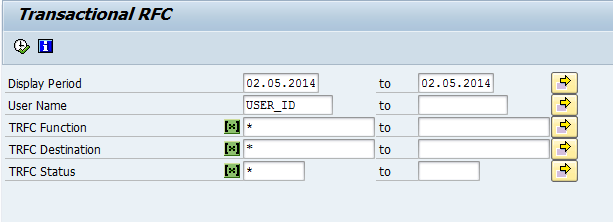
Now debug the LUW.
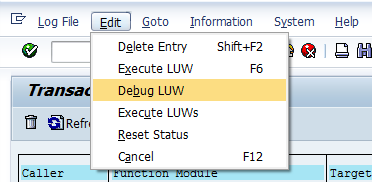

You will be now inside the FM. 

After above execution process, corresponding record from SM58 will be deleted. 


Debugging FM in update task

Debugging FM in update task:

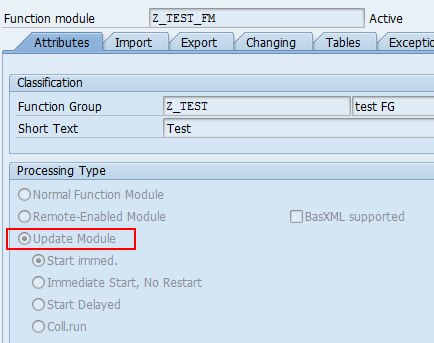
Let’s create an Update module in SE37 like below.  


And simple code inside update module.


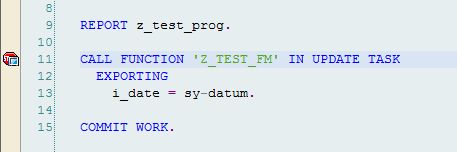
Now let’s create a simple program through SE38 and call this FM in update task.

Once we execute this program, FM ZUPDATE_TASK will be called in update task and immediately it will be registered in VBLOG table on priority basis.  
Note it will not get execute until unless control reaches to COMMIT WORK statement as shown above.  
Once control executes COMMIT WORK, the above registered FM in VBLOG table will be called and gets execute.
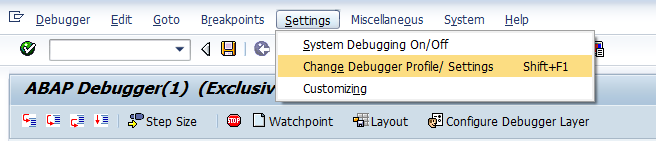
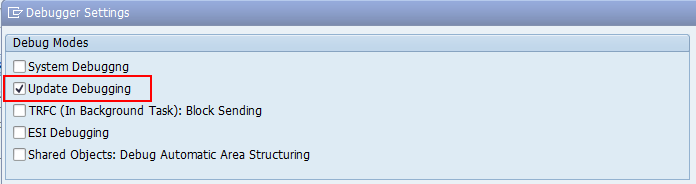
To debug our update FM we need to switch on Update Debugger in debugging mode


If we do not perform above activity, update module will get execute in the background and we would not able to see it in the foreground and debug the same .

Now let’s execute and test the same.


And in next step Update debugger screen will open as given below.  


Debugging RFC

Debugging RFC:

Problem:
When we will be working with RFC, sometime our external break points will not work for debugging. The reason behind is when we call any SAP RFC function module from any integration tool, it will be processed on any available application server in the backend, where a user breakpoint can not be triggered to debug the ABAP code in the backend system.

Solution:
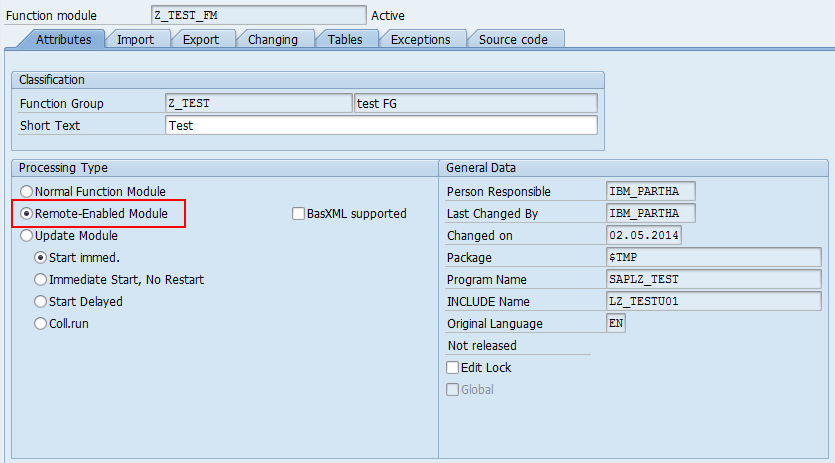
Put a external break point in the RFC code (RFC enable FM or Proxy class implementation).

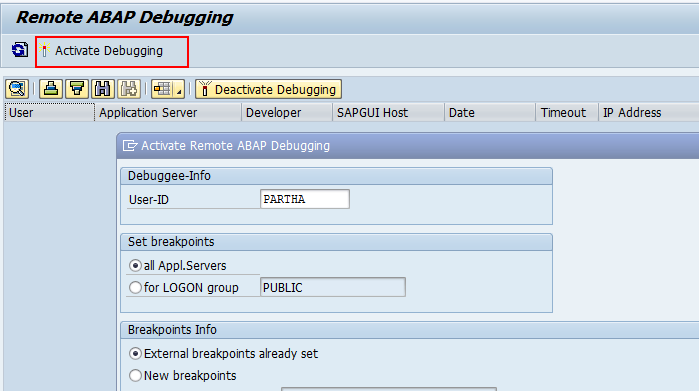
Go to SRDEBUG tcode and press on Active Debugging.

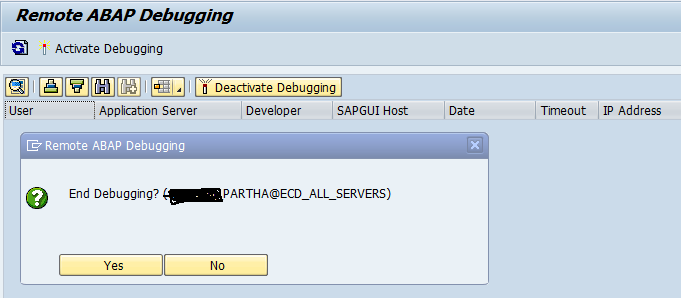
A pop up screen will appear. Press OK (enter).


Another pop up screen will appear, like the below one.
Let it be as it is and create a different session for your RFC debugging.

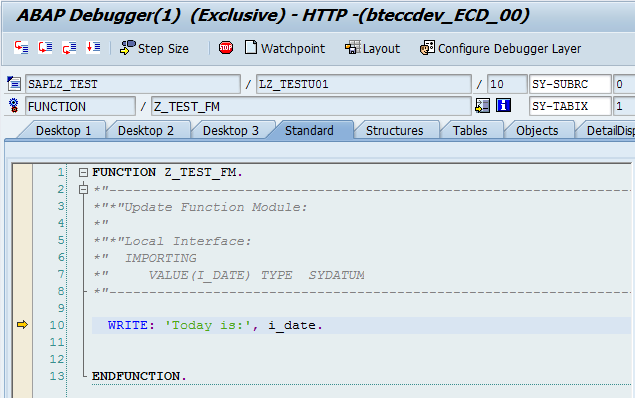
Now when you will execute you’re your transaction in ECC SAP R/3 or When the message arrives to SAP R/3 system, a debug session will be started from the point where we have kept the BP.

Debugging Background Job

Debugging Background Job:
  • Go to SM37. Put the job name.
  • Select the checkbox of the job as shown below.
  • Enter JDBG in command field as shown below.
  • Now press Enter.
  • You will be in debug mode.
  • Press F7 three times. You will be in your program.